
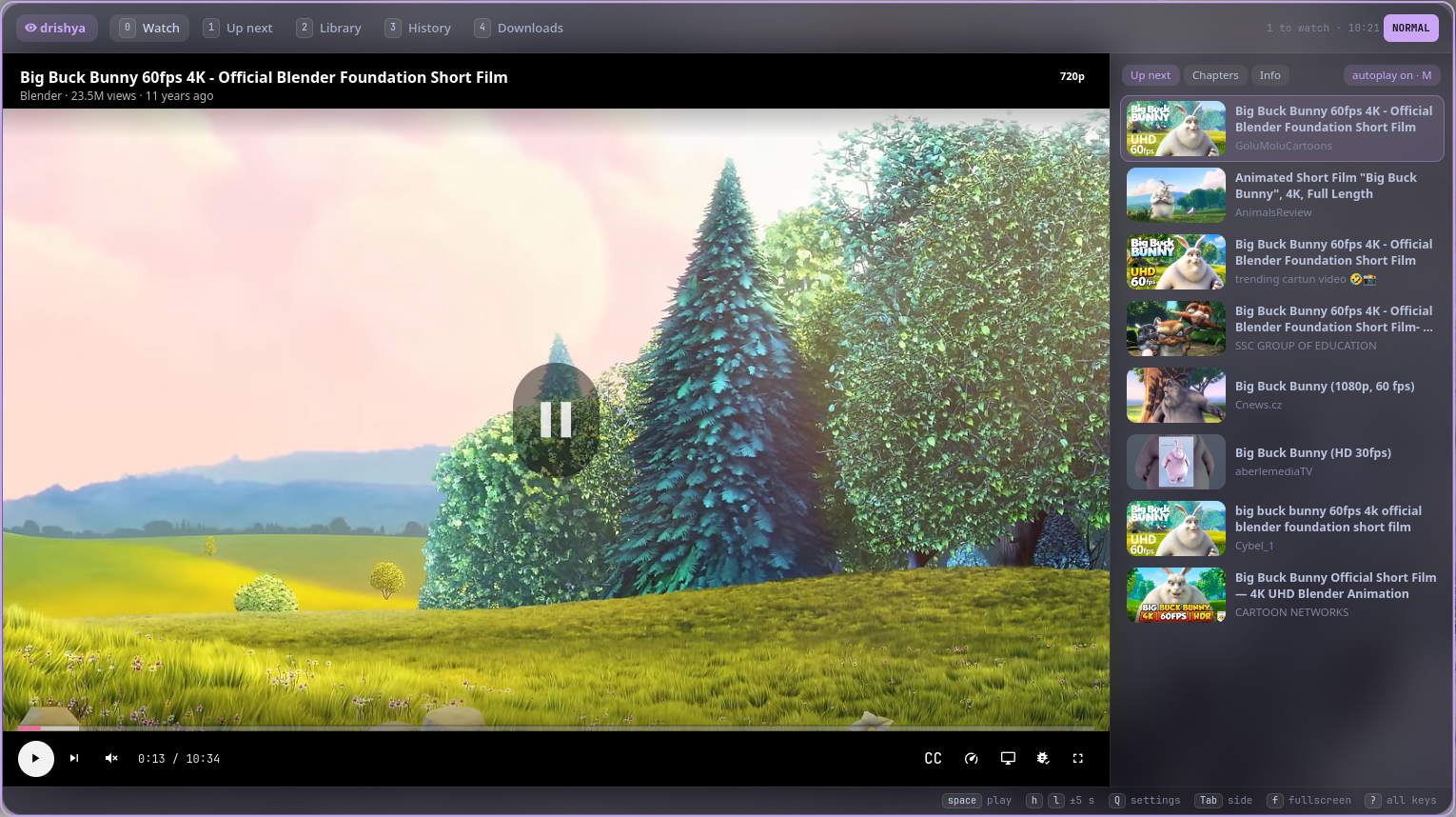
Dṛśya (दृश्य) is Sanskrit for "sight, what is seen". It's the sibling of nāda ("sound"), the music player: same keys, same look.
#Features
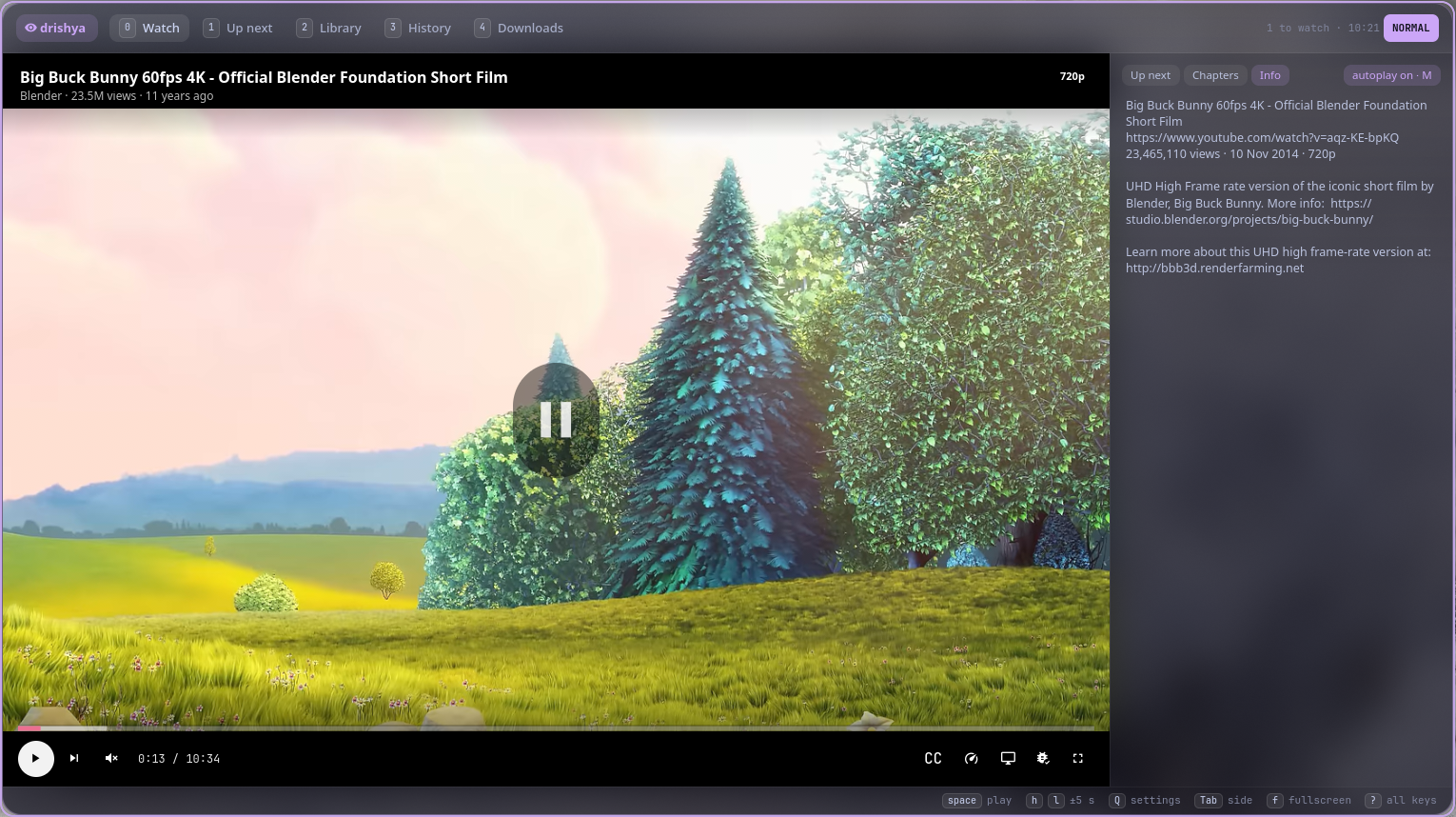
- Video first: mpv draws into the window (libmpv, hardware decoding). The controls float over the video and fade after a moment; the timeline shows the chapters, what's buffered, and a preview frame where you hover.
fis fullscreen as zen: just the video, and a small readout in the corner when you seek or pressi.ttheater,za mini player. - Search from anywhere (
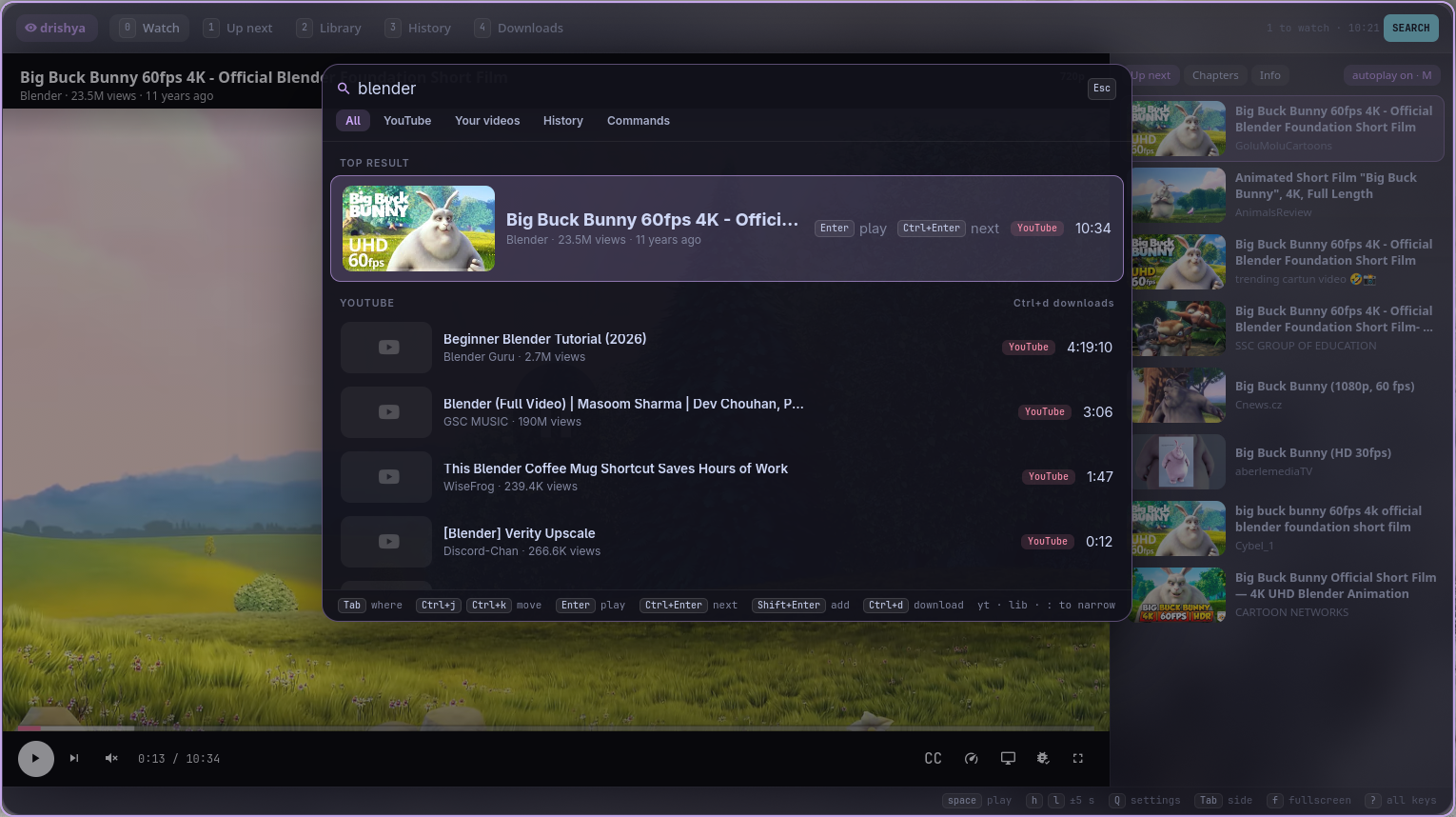
/): one floating panel for YouTube, your videos, your history, a link you paste and commands. Your own videos answer as you type, YouTube a moment later, the best match first;Tabpicks where to look. Play, play next, add or download without leaving it. - YouTube without an account: every result with its thumbnail, channel, views and length; related videos play after yours (autoplay,
M). - Any link:
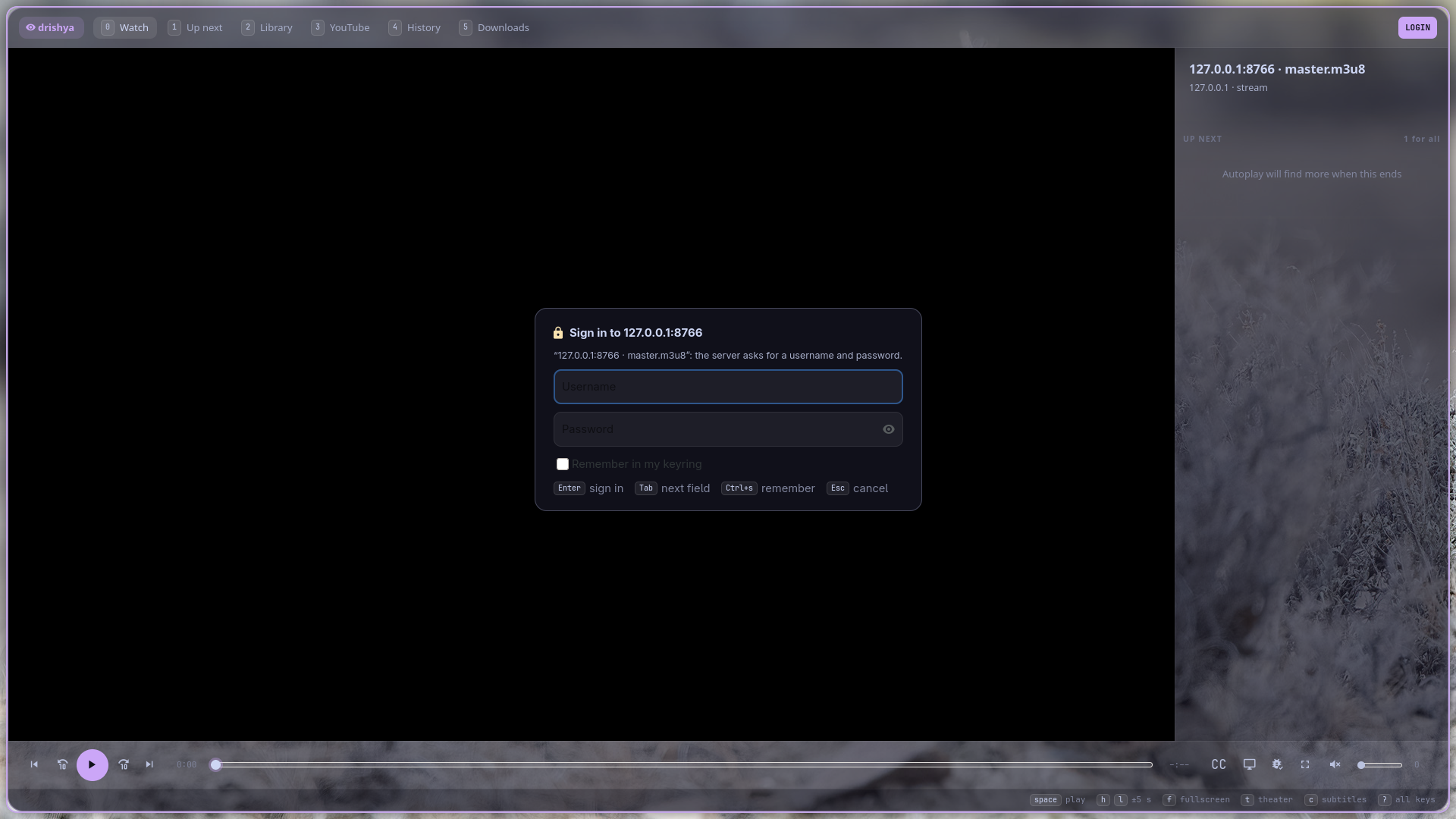
oand paste. HLS (.m3u8) and DASH streams from any server, a video file over HTTP, live streams, and the sites yt-dlp plays. A stream's qualities are capped like YouTube's. - Signs in when it has to: a server that asks for a username and password gets a sign-in panel; sites that need an account can borrow your browser's login. Logins you choose to remember go to your keyring.
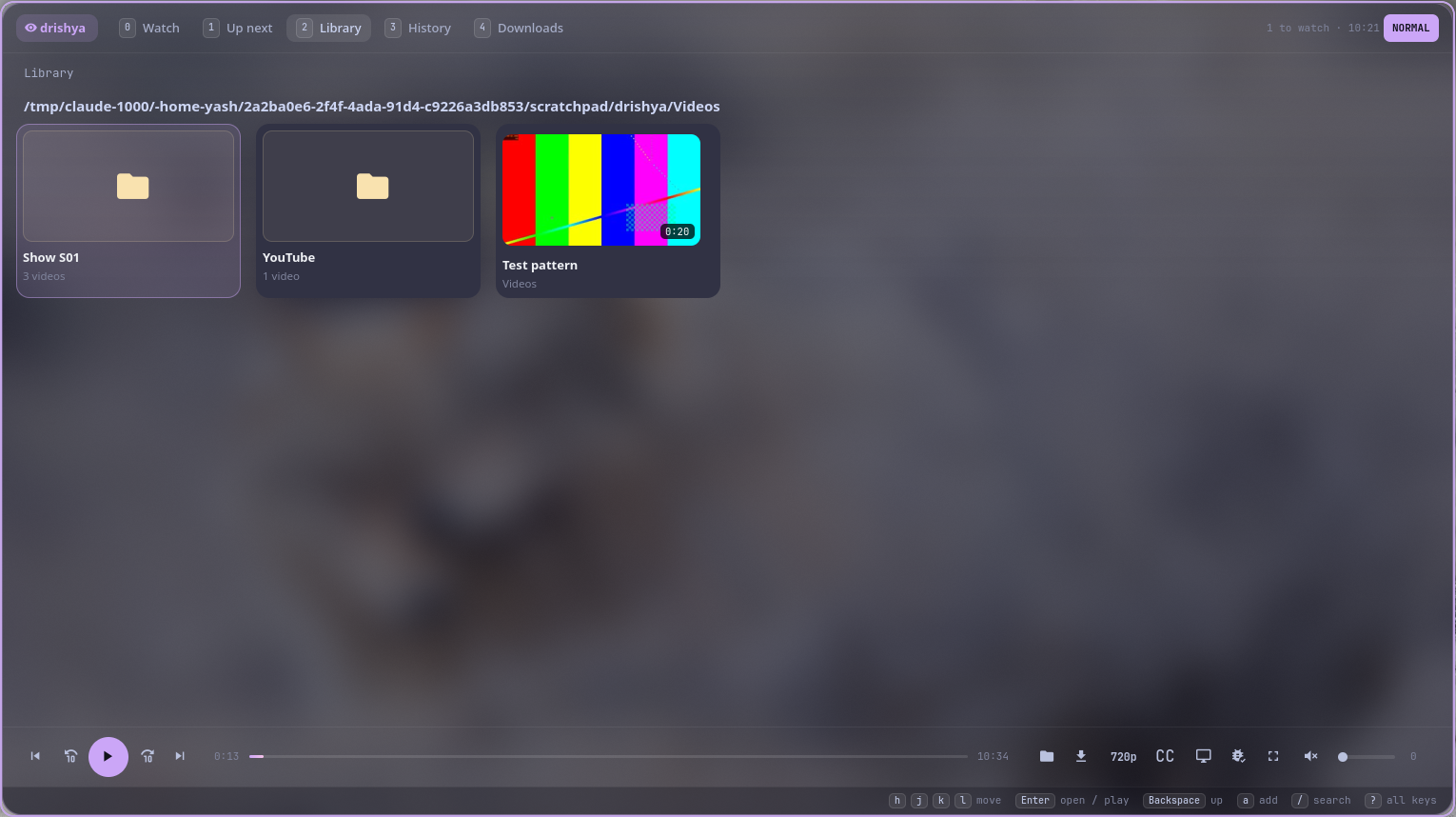
- Your library as a grid: Continue watching first, then your folders; inside, the episodes in order (
S01E02, "Episode 10" after "Episode 9"), thumbnails, and the next episode lined up after the one you play. - Resume and history: every video starts where you stopped. History (
4) has a Continue watching list, with a red bar for how much you've seen. - Up next, edited like text:
ddremoves,J/Kmove,yy/pcopy and paste,Vselects several,uundoes,Ctrl+rredoes. - One settings menu (
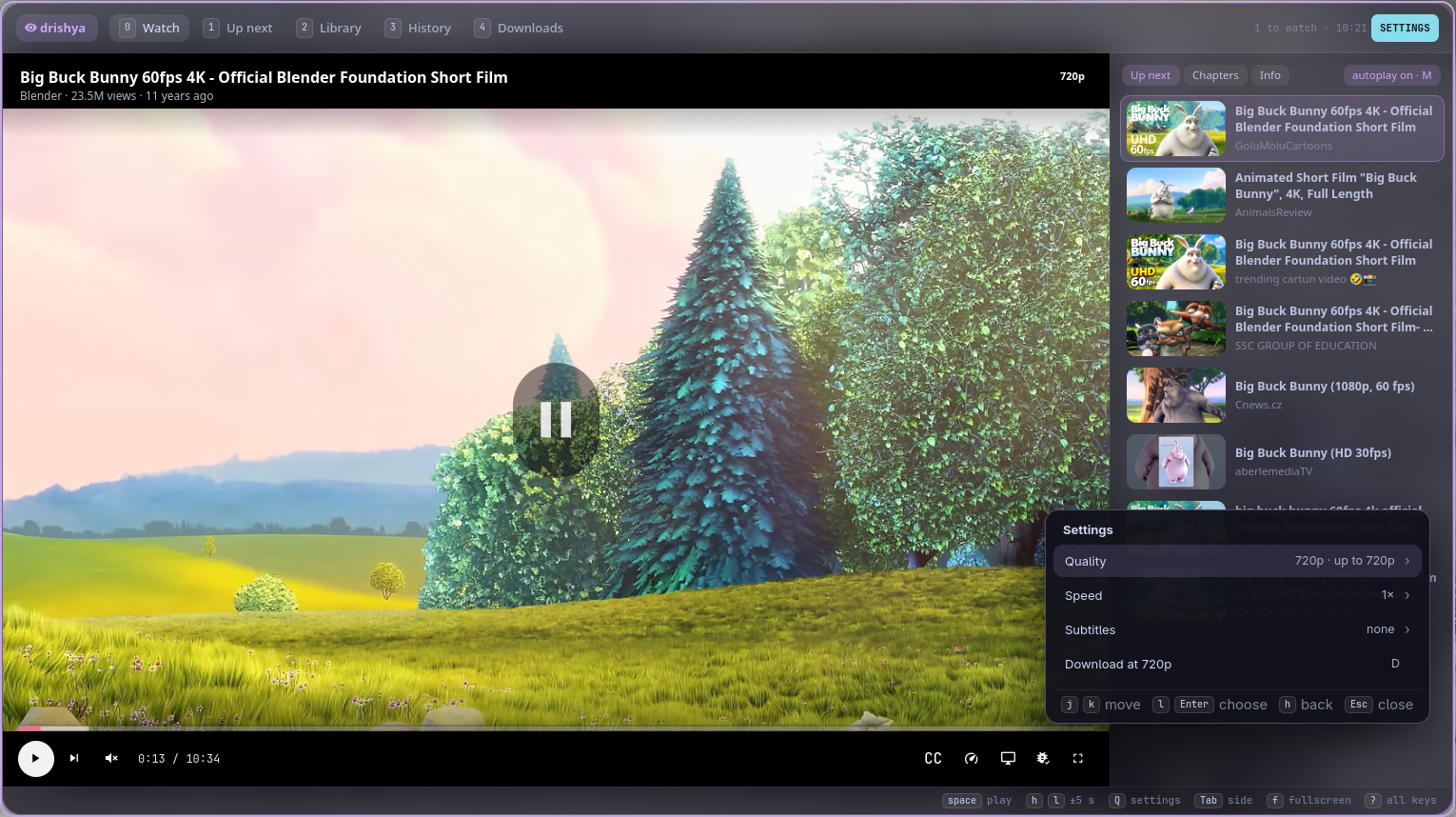
Q): quality, speed, subtitles, audio track, download. Quality lists what YouTube offers for this video (4K down to 144p) or a stream's own qualities. Your pick stays for the next videos and for downloads. - Downloads with subtitles:
D(or the download button) saves a video (YouTube or any link) at your quality, with its subtitles, chapters and thumbnail; it then plays from your disk. - Subtitles, audio tracks, speed, chapters:
c,#,[],{}. Subtitles are real captions in your languages, never YouTube's machine translations. - Everywhere on the desktop: MPRIS for media keys,
playerctland your phone (KDE Connect);drishya ctlanddrishya playfor scripts. - In your theme: varna's colours when you have it, the glass of Vyom's panels; Catppuccin Mocha without.
#Install
#Requirements
- Python 3.11+, PyGObject, GTK 4
- mpv (drishya uses its library, libmpv, which comes with it)
- yt-dlp for YouTube and other sites, ffmpeg for thumbnails and downloads
- optional:
secret-tool(libsecret) to remember logins in your keyring,brightnessctlfor the brightness keys, a Nerd Font for the icons
# Arch
sudo pacman -S --needed python-gobject gtk4 mpv yt-dlp ffmpeg libsecret ttf-jetbrains-mono-nerd
# Debian / Ubuntu
sudo apt install python3-gi gir1.2-gtk-4.0 libmpv2 yt-dlp ffmpeg libsecret-tools#drishya
git clone https://github.com/Theyashsawarkar/drishya ~/.local/share/drishya
ln -s ~/.local/share/drishya/bin/drishya ~/.local/bin/drishya
drishya            # opens the player (it starts itself the first time)
For app launchers and to open video files with it:
ln -s ~/.local/share/drishya/data/dev.vayu.Drishya.desktop ~/.local/share/applications/
xdg-mime default dev.vayu.Drishya.desktop video/mp4 video/x-matroska video/webm
Update with git -C ~/.local/share/drishya pull && drishya quit.
To start it with your session (so it opens at once), a user service:
# ~/.config/systemd/user/drishya.service
[Unit]
PartOf=graphical-session.target
After=graphical-session.target
[Service]
ExecStart=%h/.local/bin/drishya daemon
Restart=on-failure
[Install]
WantedBy=graphical-session.target
On a tiling compositor, float the mini player in a corner. sway:
for_window [app_id="^dev\.vayu\.Drishya$" title="^drishya mini$"] floating enable, sticky enable, resize set 480 270, move position 1420 790#Usage
drishya                     open the player, or close it if it's open
drishya play <what>         play now: a YouTube link, any stream or video link, a file or folder,
                            or search words (plays the top YouTube result)
drishya add [--next] <what> add to Up next instead
drishya show | hide | mini  the window, hidden, the mini player
drishya tab <name>          watch queue library youtube history downloads
drishya ctl <command>       toggle play pause next prev | seek +10 | seek 1:30 | vol 80 | speed 1.5
drishya status [--json]     what's playing
drishya quit                stop it
Tabs: 0 Watch, 1 Up next, 2 Library, 3 History, 4 Downloads; / searches YouTube, your videos and history from any of them. Lists move with j/k; Enter plays. ? shows every key.
#Keys
The footer always shows the keys for where you are; ? shows them all. The same rules everywhere: / searches, Esc goes back or closes, j/k move, h/l go back and in (menus, the grid), Enter does the main thing, Tab switches section; while typing, Ctrl+j/Ctrl+k move. Counts work like vim: 5j, 3.. A tab number followed by a key that takes no count (or a lone 1) goes to that tab first.
Volume and brightness: =/- change the system volume and Ctrl+=/Ctrl+- the screen's brightness (pactl or wpctl, and brightnessctl); when the window closes, both go back to how they were.
Everywhere
| Key | Action |
|---|---|
/ | Open the search panel (YouTube, your videos, history, links, : commands) |
o | Open the search panel to paste a link or file path |
Ctrl+Tab / Ctrl+Shift+Tab | Switch to the next / previous tab (wraps around) |
Ctrl+0..4 | Switch to that numbered tab at once (the number shown on it) |
0 | Switch to Watch (the video) |
1 | Switch to Up next (the queue) |
2 | Switch to your video library (a grid) |
3 | Switch to your history (continue watching) |
4 | Switch to downloads |
j / k | Move down / up (counts work: 5j) |
gg / G | Jump to the top / bottom (12G: to the 12th) |
Ctrl+d / Ctrl+u | Scroll half a page down / up |
Space | Toggle play / pause |
Enter | Play the selected video |
. / , | Seek forward / back 10 seconds (3. = 30 s) |
> / < | Play the next / previous video |
= / - | Raise / lower the system volume (back as it was when the window closes) |
Ctrl+= / Ctrl+- | Raise / lower the screen brightness (back as it was when the window closes) |
m | Toggle mute |
f | Toggle fullscreen (zen: just the video; Esc leaves it too) |
t | Toggle theater mode (the video without the side panel) |
z | Switch to the mini player (picture-in-picture) |
Q | Open the settings menu (quality, speed, subtitles, audio, download) |
c | Cycle subtitles (off, then each language) |
# | Cycle the audio track |
[ / ] | Slow down / speed up playback (0.25× steps) |
\ | Reset playback speed to normal |
{ / } | Jump to the previous / next chapter |
S | Start the video over from the beginning |
M | Toggle autoplay (related videos or the next episode after yours) |
D | Save the video to your disk with subtitles (download) |
V | Select several videos (visual mode) |
u | Restore the last queue change (undo) |
Ctrl+r | Restore an undone queue change (redo) |
: | Run a command (:seek 1:30, :speed 1.5…) |
i | Show the video's title and link (in fullscreen, briefly in the corner) |
? | Show all keys |
q / Esc | Close the window (pauses; z keeps a mini player) |
On Watch (0)
| Key | Action |
|---|---|
h / l | Seek back / forward 5 seconds (3l = 15 s) |
Tab | Switch the side panel (up next, chapters, info) |
j / k | Move through the side panel's list (Enter plays it or jumps to the chapter) |
On Up next (1)
| Key | Action |
|---|---|
dd | Remove the video from the queue (V: the selection) |
yy | Copy the video (yank) |
p / P | Paste removed or copied videos below / above |
J / K | Move the video down / up |
A | Move the video to play next |
zz | Jump to the video that's playing |
In the library (2)
| Key | Action |
|---|---|
h / j / k / l | Move through the grid |
Enter | Open the folder or play the video (the rest of the folder after it) |
Backspace | Go up a folder |
a / A | Add to the end of the queue / to play next |
R | Reload the folders |
In YouTube results (from /)
| Key | Action |
|---|---|
a / A | Add the result to the end of the queue / to play next |
In the history (3)
| Key | Action |
|---|---|
dd | Forget the video (removes it from the history) |
In downloads (4)
| Key | Action |
|---|---|
R | Retry a failed download |
x | Cancel a download in progress |
dd | Delete the saved file (asks first) |
In the search panel (/)
| Key | Action |
|---|---|
Tab / Shift+Tab | Switch where to look (all, YouTube, your videos, history, commands) |
Ctrl+j / Ctrl+k | Move through the results while typing |
Enter | Play the result (a command: run it) |
Ctrl+Enter | Play the result next |
Shift+Enter | Add the result to Up next |
Ctrl+d | Download the result |
Ctrl+u | Clear the search box |
Ctrl+x | Clear recent searches |
Esc | Close the search panel |
In the settings menu (Q)
| Key | Action |
|---|---|
j / k | Move through the settings menu |
l / Enter | Open the setting or choose it |
h / Backspace | Go back in the settings menu |
Esc | Close the settings menu |
In the sign-in panel
| Key | Action |
|---|---|
Enter | Sign in and play (from the password field) |
Tab | Move between the username and password fields |
Ctrl+b | Sign in with your browser's login instead (sites yt-dlp plays) |
Ctrl+s | Toggle remembering the login in your keyring |
Esc | Cancel signing in |
In the mini player (z)
| Key | Action |
|---|---|
Space | Toggle play / pause |
. / , | Seek forward / back 10 seconds |
> / < | Play the next / previous video |
= / - | Raise / lower the system volume |
Ctrl+= / Ctrl+- | Raise / lower the screen brightness |
z / Enter | Switch back to the full player |
q / Esc | Close the mini player (pauses) |
#Commands
: opens the command line:
| Command | What it does |
|---|---|
:open <link, file or folder> | Play it now (o opens this) |
:add <…> | Add to Up next |
:yt <search> | Search YouTube |
:seek 1:30 · :seek +30 | Jump to a time, or by an amount |
:speed 1.5 | Playback speed |
:vol 80 · :vol +10 | Volume |
:sub en · :sub off | Pick subtitles by language |
:quality 720 | Play at up to 720p, from now on (Q picks from a list) |
:sleep 30m · :sleep off | Pause after a while |
:shot | Save a screenshot to ~/Pictures |
:logout [server] | Forget the login for a server (and remove it from your keyring) |
:autoplay on · off | Same as M |
:dl | Download what's playing |
:clear | Empty Up next (u brings it back) |
:q · :qa | Hide the window · quit |
#Links, streams and signing in
Press o, paste a link and Enter (or paste it into the YouTube search box, or run drishya play <link>). drishya plays:
- HLS and DASH (
.m3u8,.mpd) from any server, live or not. A stream that offers several qualities plays the best one up to yourquality. - A video file on a server (
https://…/film.mkv), streamed as it plays. - Any site yt-dlp supports (Vimeo, Twitch, Dailymotion, news sites…).
rtmp://,rtsp://,srt://streams.
When the server answers that it needs a login (HTTP 401 or 403), a sign-in panel opens: your username and password, sent as HTTP authentication with every request, including each segment of a stream. Tick Remember in my keyring (Ctrl+s) to keep it in your keyring (through libsecret), else it's kept only until drishya quits. A site that needs an account offers your browser's login instead (Ctrl+b: yt-dlp reads its cookies). A link with the login in it (https://user:password@host/…) works too: the login is taken out of the link, so it never reaches the history or the queue file.
#Configuration
~/.config/drishya/config.toml, everything optional:
[drishya]
quality = 1080           # highest resolution to stream or download
autoplay = true          # more after your videos: related ones, or the next episode
resume = true            # start where you stopped
seek_step = 10           # seconds for , and .
fine_step = 5            # seconds for h and l on the Watch tab
volume_step = 5
subtitles = "en"         # your subtitle languages, e.g. "en,hi"
video_dirs = ["~/Videos"]
download_dir = "~/Videos/YouTube"
hwdec = "auto-copy-safe" # mpv's hardware decoding; "no" to turn it off
pause_on_hide = true     # q pauses (z keeps a mini player going)
# opacity = 0.62         # the window's glass (unset: your theme's)
Styles: ~/.config/drishya/style.css is loaded after drishya's own. State: ~/.local/state/drishya (history, queue, settings, downloads); thumbnails: ~/.cache/drishya.
#How it works
- One resident process (
drishya daemon, the app iddev.vayu.Drishya) holds the player, MPRIS and downloads;drishyaonly sends it a D-Bus message, so the window opens at once. - The player is libmpv, bound with ctypes (
drishya/mpv.py): no extra Python package. Its OpenGL renderer draws into a GTKGLArea; the mini player takes the renderer over and gives it back. - YouTube plays through mpv's own yt-dlp support, which picks the streams (no AV1, which few laptops decode in hardware) and renews them. Search, related videos and downloads call yt-dlp directly, never on the GTK main loop.
- Logs go to stderr:
journalctl --user -u drishyawith the service.DRISHYA_DEBUG=1shows debug messages.
#Troubleshooting
- Black video, sound plays. Look at
journalctl --user -u drishyafor "OpenGL" or "video output".hwdec = "no"rules out hardware decoding. - YouTube says "Sign in to confirm you're not a bot". The sign-in panel offers your browser's login (
Ctrl+b). - A stream won't play. Try it in mpv (
mpv '<link>'); if mpv can't, drishya can't either. A 403 often means the link expired: get a fresh one. - No thumbnails for your files. Install ffmpeg.
#Contributing
Bug reports, ideas and pull requests are welcome: see CONTRIBUTING.md, and CHANGELOG.md for what changed in each release.
drishya comes from Vayu, a keyboard-driven Wayland desktop, and works on any Linux desktop on its own.